Separate the service from the hardware
Amazon's devices overview describes Echo products as ways to access Alexa. That distinction matters when you compare a speaker, a display and an Alexa-enabled product from another manufacturer.
An assistant responds to supported requests and connects to services. The physical device supplies the microphones, speaker, screen or other components used for that interaction. Features can vary by model, generation, region and account.
Write down the exact device name when researching a function. Advice for an older Echo or a different screen size may not apply to the product in front of you.
Start with tasks you expect to repeat
Consider a small set of ordinary jobs such as setting timers, requesting information, playing supported audio or controlling compatible lights. Decide where those tasks happen and whether voice control, a screen or physical buttons would be useful there.
Check the services you already use. Music and other content can have separate account or subscription requirements. Access to the assistant does not automatically include every service it can connect to.
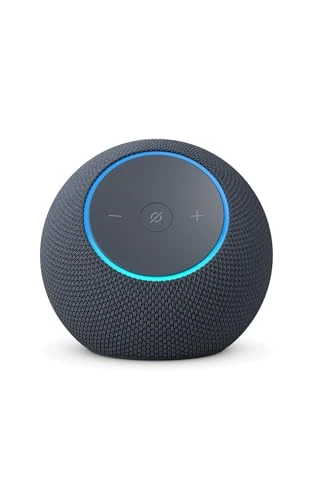
Our Echo-speaker comparison helps compare the listed hardware. Confirm the current terms for Alexa or Alexa+ features on your chosen device instead of assuming every advertised capability is included.
Check the whole smart-home connection
A compatible light or sensor may need its own app, a bridge or a particular controller. Verify the accessory's requirements and the capabilities of the exact Echo model before buying either.
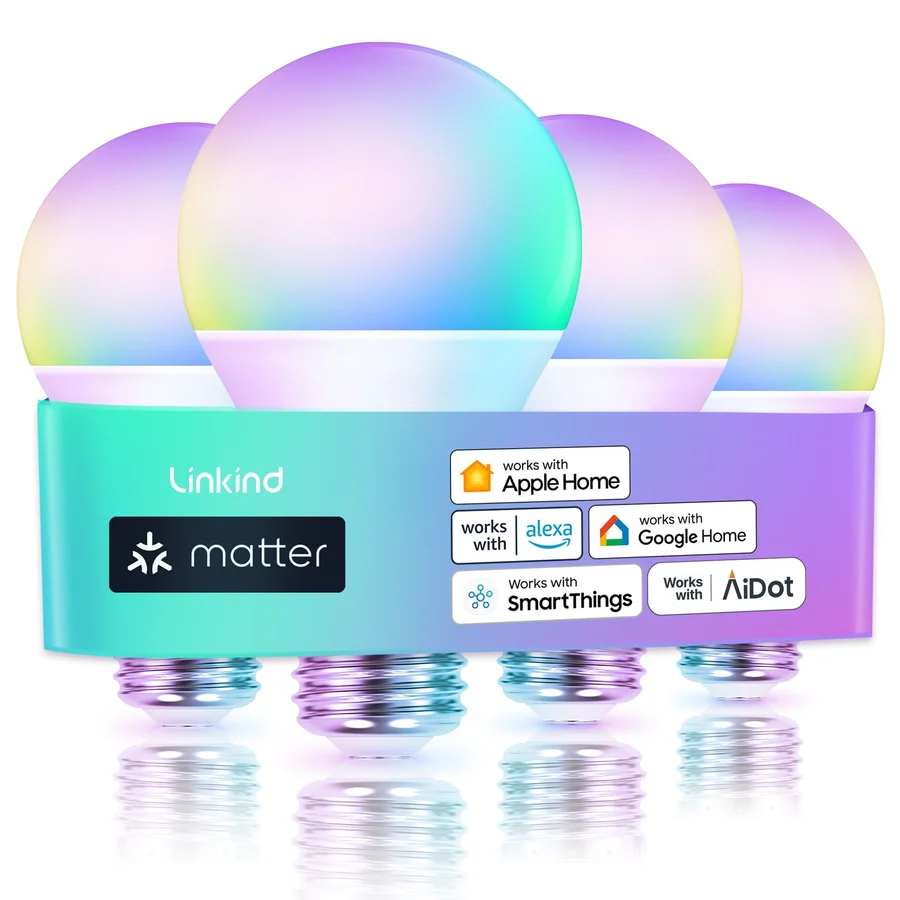
Our guide to Alexa lighting options covers a common starting point. Choose a useful first task and retain an ordinary way to operate the light when voice control is inconvenient.
For a broader plan, the home-gadget article explains how to evaluate setup and maintenance. Give devices clear names that everyone in the household can understand.
Learn the privacy controls before routine use
Amazon's microphone-control instructions explain how the microphone-off button disconnects microphones on the specified Echo models. Voice commands through those microphones will not work while they are off.
Check the instructions for the device you own, including camera controls if it has a camera. Review the Alexa privacy settings for your account and agree on placement with the people sharing the room.
Turning off a microphone is different from deleting previously stored activity or changing account permissions. Review each relevant control rather than treating one button as a complete account-privacy setting.
Try one device before expanding
Set it up using the official instructions, check the account and network connection, then try the tasks on your list. Review purchase controls and any third-party services you connect.
If it adds useful convenience, expand deliberately. If it mainly produces unwanted notifications or misunderstood commands, adjust the setup before buying more hardware. The right choice depends on how the household actually uses it.
Start with the service and device roles
Alexa is Amazon’s voice-assistant service; an Echo is one family of hardware that can provide microphones, speakers and sometimes a display to use that service. A device may also support ordinary Bluetooth audio or other features separately from Alexa. Record the exact model and generation when checking a claim, because a feature available on one Echo is not necessarily present on another. An Alexa-enabled product made by another company may have different controls and support. Think about the job you want done: a timer in the kitchen, spoken reminders, music, a visual recipe or control of a compatible light. That job determines whether a screen or larger speaker matters.
Set up through the official app
Amazon’s Echo setup instructions advise using an up-to-date Alexa app. Connect the device to power and the supported Wi-Fi network, sign in with the intended account and follow the model-specific pairing steps. Check the account’s region and language if a service is missing. Keep the device where its microphones can hear normal speech but where it will not be disturbed by heat, water or a blocked power cable. Test a simple timer before configuring shopping, communications or home automation. If setup fails, use the exact model’s support instructions instead of resetting other household equipment at random.
Understand wake words and recordings
Amazon’s Alexa FAQ says that when an Echo detects its wake word, an indicator signals that audio is being recorded for cloud processing. It also describes false wakes and the ability to review and delete associated recordings in Alexa Privacy. Learn the device’s microphone control and what its indicator means. Decide whether voice control belongs in each room, especially where visitors may not expect it. Review the current privacy settings with everyone who uses the device. Deleting recordings and changing retention settings can affect personalized features, so read the on-screen explanation before selecting an option.
Check smart-home compatibility precisely
A smart plug or bulb must be compatible with the Alexa arrangement you own. Amazon’s smart-home connection guide advises checking the product’s compatibility and following the brand’s setup path. Some accessories need their own app, bridge, account or a particular network band. A “Works with Alexa” label is a useful starting point, but verify the exact model and function you need, such as dimming rather than only on/off control. Keep a physical or app-based way to operate essential devices if voice control or the internet fails. Test one device before automating a whole room.
Separate included features from subscriptions
Basic voice commands, music catalog access, enhanced assistant capabilities, video services and third-party skills may have different terms. Check the current offering in your region and on your particular device. An Echo purchase does not automatically include every compatible music or video subscription. Review the account used for purchases and decide whether voice ordering should be enabled. If children use the device, inspect the available family controls. Avoid quoting a feature from an older product listing as though it is guaranteed forever. Keep your purchase decision tied to tasks supported now and to the services you already pay for.
Use routines with a clear fallback
A routine can combine supported actions, such as turning on a light and announcing a reminder. Start with a small, reversible sequence and test it at the time and in the room you intend to use. Name devices clearly so a voice request does not affect the wrong outlet. Do not place a safety-critical appliance on an automation without confirming the maker’s guidance and considering what happens after a power interruption. The Alexa app can help manage connected devices, but a routine depends on each accessory and service remaining available. Keep the manual switch or normal control accessible for essential lighting.
Maintain the device and account
Review connected skills, shared household access and devices associated with the Amazon account. Remove services you no longer use and keep the Alexa app and Echo firmware updated through supported mechanisms. If you sell or give away an Echo, follow Amazon’s account-deregistration and reset instructions so the next owner cannot use your settings. Revisit recording retention and privacy controls after major feature changes. If the device stops responding, test power and Wi-Fi first, then consult the model’s troubleshooting page. A clear understanding of the account, hardware and connected services makes the assistant more useful and easier to manage.
This article draws on the linked primary sources and practical explanations. It does not report hands-on testing or a personalized assessment.