
Notice when the sound changes
Record what the computer is doing when the noise begins. A demanding game, video export or background indexing can coincide with faster fans. Apple's fan-noise guidance explains that rushing-air noise during intensive work can be part of normal cooling on its fan-equipped products.
Compare that with persistent noise during light use. A new rattling or scraping sound is different from a smooth increase in airflow and should be described accurately to support.
Note the model, operating system, connected accessories and any warning messages. This makes a support request more useful than reporting only that the computer is loud.
Clear the airflow path
Use the laptop on a hard, flat surface and keep its vents unobstructed. Soft bedding, cushions and covers can interfere with airflow. Check the maker's placement and operating-temperature instructions.
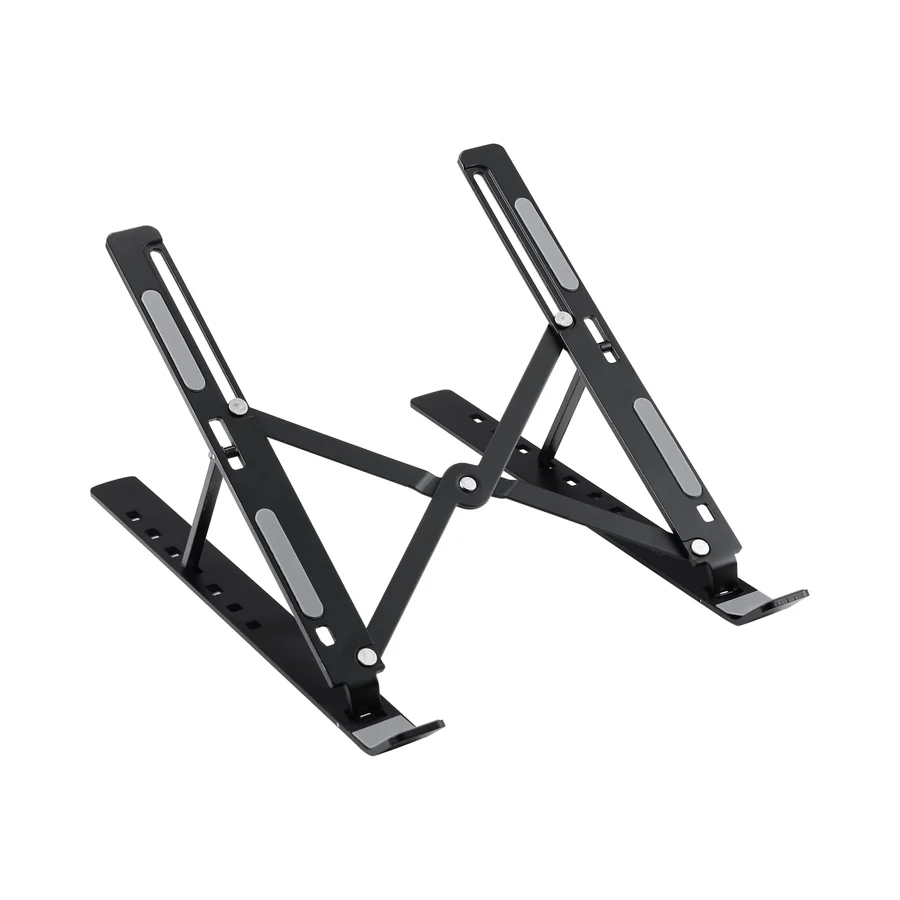
Look at the setup around the laptop as well as underneath it. A stand should fit the machine securely without covering an intake. Our stand comparison helps evaluate the physical fit.
Do not use an accessory to hide a persistent fault. A cooler surface or additional fan cannot establish that the laptop's own cooling system is working properly.
Check workload and approved updates
Use the operating system's activity tools to see which applications are busy. Save your work and close an application normally if you recognize it and no longer need it. Avoid ending unfamiliar system processes simply because they appear near the top of a list.
Dell's fan-troubleshooting guide includes checking airflow, software and hardware diagnostics. Follow the instructions for your exact model, using the manufacturer's official downloads and support tools.
Keep backups before maintenance. Do not disable thermal protections or force an unusually low fan speed merely to reduce the sound.
Clean only as the manufacturer permits
Turn the laptop off and disconnect power before any external cleaning, following its manual. Inspect the vents without inserting tools or spraying liquid into them.
Cleaning methods differ by design. Dell warns against vacuum cleaners because of static risks, but that is not a universal instruction to use compressed air on every laptop. Follow the applicable care procedure and seek service when dust cannot be safely reached.
Our keyboard-cleaning article covers a different surface-care task. Removing crumbs from keys does not prove that internal cooling passages are clear.
Know when to stop troubleshooting
Stop using the device and seek manufacturer guidance if you notice a swollen battery, smoke, a burning smell or repeated overheating shutdowns. Follow the manufacturer's swollen-battery guidance. Do not open or press on it.
For persistent noise without those warning signs, run the approved diagnostics and keep the results for support. Our cooling-pad comparison can help with an accessory decision after a fault has been ruled out. It is not a repair procedure.
Compare the noise with the task
A fan that rises during a video export or game and settles afterward may be responding normally to workload. Microsoft’s Surface fan guidance explains that fan speed changes with utilization and ambient conditions. Note whether the sound is smooth airflow, a repeated click, a scrape or a rattle. Write down when it starts and how long it lasts. Check whether the laptop is charging, running a system update or driving an external display. That history helps separate expected cooling from a sudden change that calls for diagnostics. Avoid relying on the sound alone to infer a particular failed part.
Inspect airflow without opening the case
Place the laptop on a stable, hard surface and identify its actual intake and exhaust locations from the manual. Keep fabric, papers and accessories clear of those openings. A raised stand may improve clearance for some layouts, but it must not block a bottom or side vent. Dell’s thermal troubleshooting guide lists obstructed vents and dust among causes of loud fans and overheating. If a fan quiets after moving the computer off a blanket, note the change. Do not treat that improvement as proof that accumulated dust or a hardware fault has been ruled out.
Check workload in the operating system
Open the operating system’s built-in task monitor and sort by CPU use while the fan is loud. A browser tab, video call, backup, update or security scan may explain sustained work. Wait for a legitimate update to finish before judging the idle state. Close an application normally if it is stuck, save your work and restart if appropriate. Do not disable security software simply to make the fan quiet. If the same process repeatedly consumes substantial resources after a reboot, consult that software maker’s support information. Record a screenshot or process name for the laptop vendor; it is more actionable than a vague report of heat.
Use the correct update and diagnostic path
Install operating-system and firmware updates through the laptop maker or operating system’s supported channels. Do not download a random fan-control utility or BIOS image from an unrelated site. Dell’s fan troubleshooting guidance recommends checking diagnostics, airflow and approved updates. A model may also have a thermal mode with quiet, balanced and performance settings; the available choices and their effect vary. Change one setting at a time and observe the result under a similar workload. A fan test that reports an error is a reason to contact support, not to keep forcing heavy use.
Treat cleaning as a model-specific procedure
Shut down and disconnect the computer before cleaning. Follow the manufacturer’s instructions for the exact model and the permitted tools. For some laptops, external vent cleaning is straightforward; opening the chassis may affect safety or warranty and can expose fragile parts. Avoid spraying liquid into a vent or spinning a fan with an uncontrolled blast of compressed air. If the manual is unclear, ask the maker or a qualified repair service. Keep a record of the steps you took and whether the sound changed. Cleaning should restore airflow, not become a substitute for investigating an abnormal mechanical noise.
Recognize the stop-use signals
Stop using the device and seek manufacturer guidance if you notice smoke, a burning smell, visible swelling, a damaged charging cable or repeated thermal shutdowns. Do not press, puncture or try to flatten a swollen battery. Dell’s battery guidance describes how to handle that condition for its products. A fan that has stopped while the machine becomes unusually hot also merits service. Back up important files if the laptop is operating safely enough to do so, then avoid demanding workloads until the problem is understood. A cooling pad cannot repair a battery, fan or heat-sink fault.
Decide what evidence to give support
Provide the exact model and serial information through the vendor’s secure support channel, along with operating-system version, noise pattern, diagnostic results and any warning messages. Explain whether the issue occurs at idle, during charging or under a repeatable task. Include the date it began and any changes in software or placement. Ask which service options are appropriate before opening the case yourself. Apple’s fan guidance and Microsoft’s Surface advice both describe normal load-related behavior, but each maker’s device-specific path matters. The goal is to identify a real change and address its cause, rather than silence the fan at any cost.
This article draws on the linked primary sources and practical explanations. It does not report hands-on testing or a personalized assessment.