Choose streaming or screen mirroring
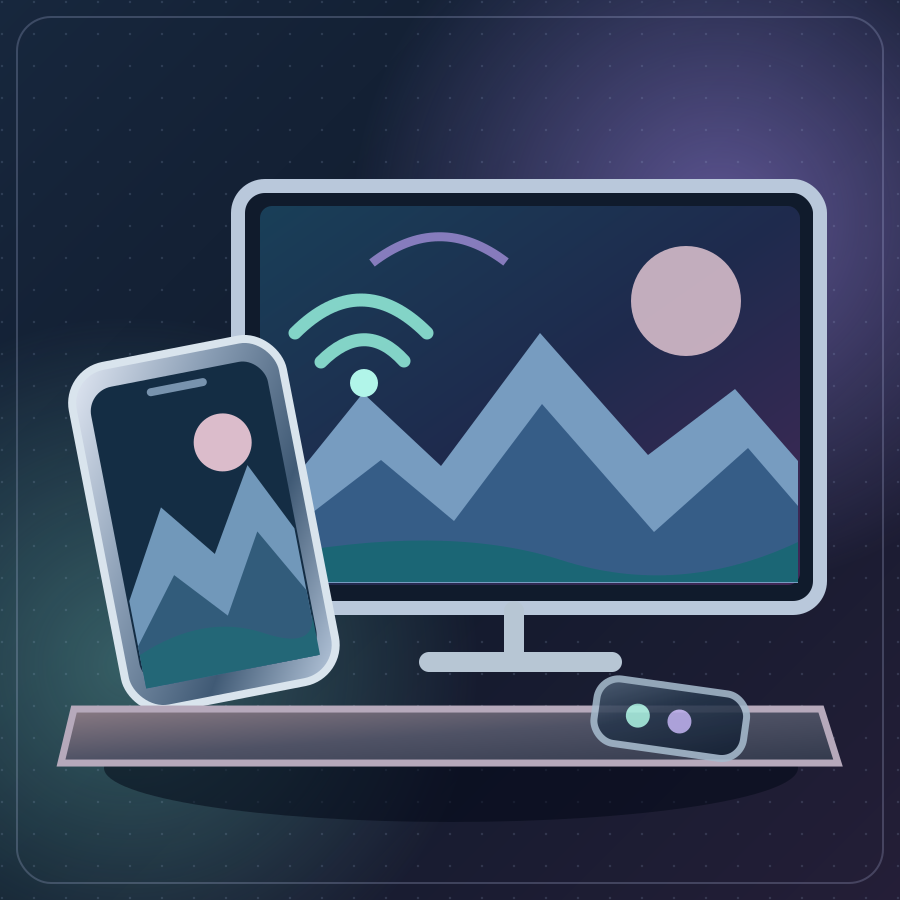
Streaming from a supported app sends the selected media to a compatible receiver. Mirroring displays the phone's screen, which can include menus and notifications. Decide which behavior you want before troubleshooting.
For a film, try the app's supported TV connection first. For a demonstration or a photo collection, mirroring may be useful. Some services restrict what can be played through a mirrored connection, so a blank video window does not necessarily mean the television is faulty.
Check the exact TV model's manual for AirPlay, Google Cast or its named mirroring feature. The phone and receiver must support the same method.
Use AirPlay with a compatible receiver
Apple's AirPlay instructions describe connecting the iPhone or iPad and receiver to the same Wi-Fi network, choosing AirPlay within a supported app and selecting the destination.
For full-screen sharing, open Control Center, choose Screen Mirroring and select the compatible TV or Apple TV. Enter the code displayed on the television if prompted. Stop mirroring from the same control when you finish.
Check which room's receiver you selected before opening personal material. If an app does not support AirPlay, look for its official TV app rather than assuming every video can be mirrored.
Use the Cast button in a supported app
Google's Google Cast guide starts with a supported app and a compatible receiver on the same Wi-Fi network. Open the app, select its Cast button and choose the intended television or streaming device.
Availability depends on the app as well as the hardware. Update the app and check its help page if the expected control is missing. A phone being Android-based does not mean it supports every TV's proprietary mirroring system.
Test with one supported app before changing several settings. That helps distinguish a device-discovery problem from a restriction in a particular service.
Troubleshoot in a useful order
- Confirm that the TV or attached receiver is powered on and configured for the chosen method.
- Check the network names on both devices.
- Check required app permissions using the provider's instructions.
- Update and restart the app or devices as their support guidance recommends.
- Try another supported app to narrow the fault.
A guest network may isolate devices. Ask the network owner about its configuration instead of disabling security settings at random. Our TV buying checklist can help you check receiver features before purchasing extra equipment.
Finish the session deliberately
Stop casting or mirroring and verify that personal content is no longer visible. Review notification settings before your next demonstration, especially on a shared screen.
If wireless performance is unsuitable for your task, check whether the phone supports a documented wired video output. An adapter is useful only when the device and app support the connection you intend to make.
Make a compatibility checklist before changing settings
Write down the phone model and software version, the TV model, and any connected streaming device. The television may expose AirPlay, Google Cast, a manufacturer-specific mirroring feature, or none of these. A streaming stick can add a receiver feature, but its presence does not make every phone app compatible. Check the exact receiver's support page and the app's help page before buying an adapter or replacing a TV.
For an iPhone, Apple says AirPlay video can go to Apple TV 4K or an AirPlay 2-enabled smart TV. For a Google Cast-enabled app, the app needs a compatible Cast receiver. These are different protocols; seeing one logo on the TV does not establish support for the other. A TV app installed directly on the television can sometimes be the simpler route when the phone app does not offer the desired connection.
Check iPhone permissions and receiver selection
Follow Apple's current iPhone AirPlay instructions for streaming and mirroring. Put the phone and the compatible receiver on the same Wi-Fi network, then choose the correct TV from the app's AirPlay control or Control Center's Screen Mirroring list. A code on the television may need to be entered on the phone.
Google also notes that iOS apps need Local Network permission to discover Cast devices. If one Cast-enabled app cannot see the receiver but another can, check that first app's permission and update status before resetting the router. See Google's Cast setup guidance. Permissions are app-specific; granting one app local access does not grant it to every app.
Separate Android screen casting from an app's Cast button
An Android phone may offer a screen-casting control through Google Home, while an individual media app may show a Cast button. The first shares what is on the phone; the second asks the receiver to play content from that app. Start with the app's own Cast control for ordinary supported video, then use mirroring only if seeing the whole phone screen is actually the goal.
Google's Android screen-casting guidance says the phone and compatible TV should use the same wireless network name. It also warns that client isolation on a guest, hotel or public network can prevent device discovery. Do not assume that a strong internet signal proves the two devices can see each other locally. If you do not control that network, use an approved alternative instead of trying to weaken its settings.
Diagnose a missing TV in a few steps
- Confirm that the receiver supports the chosen protocol and is powered on.
- Read the Wi-Fi network name on both devices, not just the signal icon.
- Open a known supported app and check its Local Network permission when applicable.
- Look for a code or approval prompt on the television.
- Restart the app, phone and receiver using their support instructions, then test again.
If the TV appears for one family member but not another, compare the phones' app versions, permissions and network names before changing the TV. If the TV never appears, check whether it is connected to the router or a separate guest network. Record which step fails so a support agent can distinguish discovery, pairing and playback issues.
When video appears but playback fails
A successful connection does not guarantee that every service will play through every route. Test a photo or a known supported app to see whether the underlying link works. If only one service fails, use that service's official TV app or help page rather than assuming the display is defective. An app may update its support, so advice based on an older screenshot can become stale.
For choppy playback, check the receiver's network connection and move the phone, receiver and router within the ranges recommended by their manufacturers. Google provides separate quality and placement advice for Android screen casting. Wireless mirroring can also feel less responsive than a direct cable for interactive work; test your own setup before relying on it for a presentation or game.
Protect what appears on a shared screen
Mirroring can reveal notifications, messages or a browser tab you did not mean to share. Before a meeting, turn on an appropriate focus mode, close private apps and choose the correct room's receiver. For a video, an app's media-streaming feature usually keeps the phone's other screens separate from the television. Confirm what the TV shows before handing over the remote or walking away.
When finished, stop the session from the phone's AirPlay, Cast or mirroring control and check that the receiver has returned to its normal screen. Disconnecting Wi-Fi can interrupt playback, but it is a less clear end-of-session step than using the app's own stop control.
This article draws on the linked primary sources and practical explanations. It does not report hands-on testing or a personalized assessment.