Write down the platform and the limitation
List the computer or console, the games you play and the problem you want to solve. Is text too small, the mouse uncomfortable, voice chat unclear or the desk overcrowded? Each problem points to a different purchase.
Check a game's current system requirements with its publisher before assuming an accessory will improve performance. A new mouse cannot fix a computer that struggles to run the game at the desired settings.
Keep a small compatibility list with ports, operating system and available space. This is less exciting than browsing a setup photograph, but it prevents a surprising number of unsuitable purchases.
Make the display match the signal
Resolution describes the image dimensions. Refresh rate describes how frequently the display can update. The game, graphics hardware, connection and screen all affect the modes you can actually use.
Microsoft's refresh-rate instructions explain where to inspect and change supported settings in Windows. Check the active mode after connecting a display rather than assuming the advertised maximum is already selected.
Before replacing a screen, review the cable, port and game settings. For a size-focused comparison, our 27-inch monitor guide explains the mapped options. Measure the desk and viewing position as well as the diagonal.
Choose controls for the games you play
A mouse and keyboard, a gamepad and a specialist controller suit different tasks. Check support in the actual game and on the intended platform. A device that connects successfully may still lack a feature you expected.
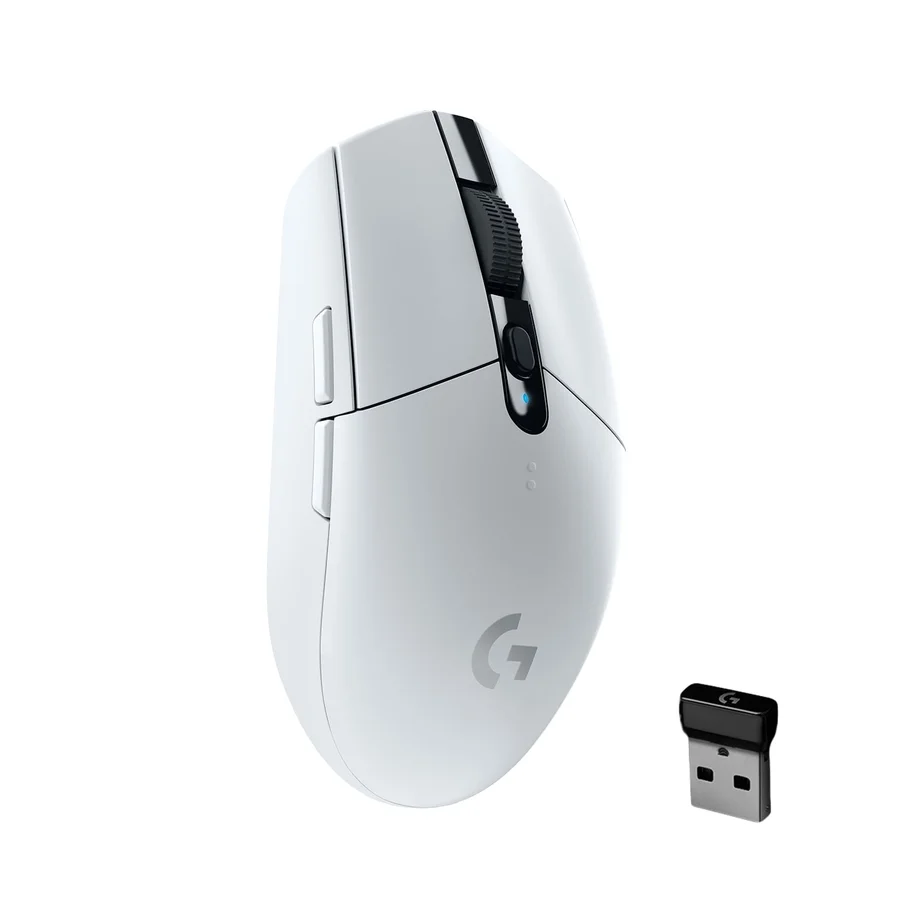
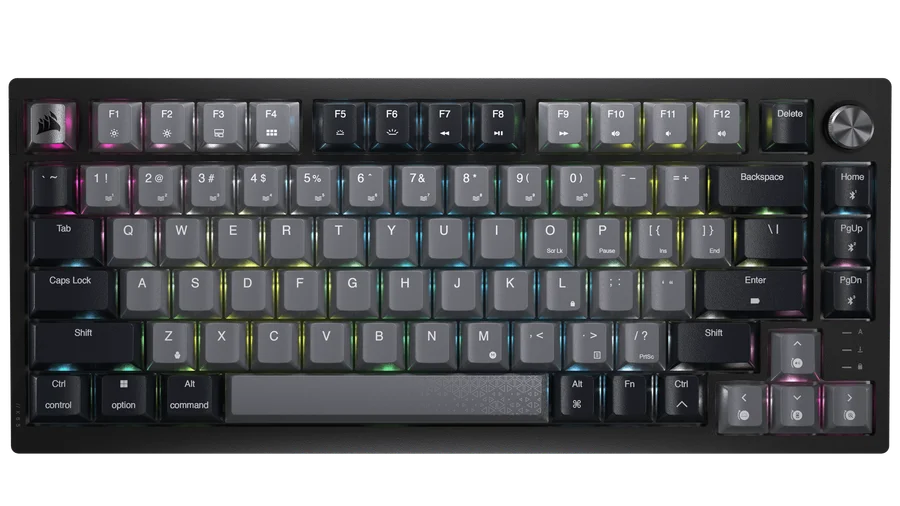
For a mouse, consider shape, reachable buttons and room to move. For a keyboard, consider the layout, key feel and space it leaves for the mouse. Lighting is a preference rather than a compatibility feature.
Our mouse comparison and keyboard guide are useful once you know which part of the setup needs changing. Avoid replacing both simply because they are sold as a matching set.
Check audio and communication separately
Hearing the game and being heard by teammates are different jobs. Test playback, microphone input and mute controls before a session. Check whether the connection uses a single combined jack, separate plugs, USB or a supported wireless system.
If you play near other people, consider sound leakage and whether speakers suit the room. Keep listening volume comfortable and take breaks. A louder setting does not fix distorted audio or a microphone pointed away from your voice.
Record a brief local microphone test if your software supports it. Listen for unwanted noise and check the selected input before buying a replacement.
Make room for the person using it
Arrange the screen and controls so you can use them without reaching around other equipment. Leave ventilation openings clear and route cables so they do not pull on ports or cross a walking route.
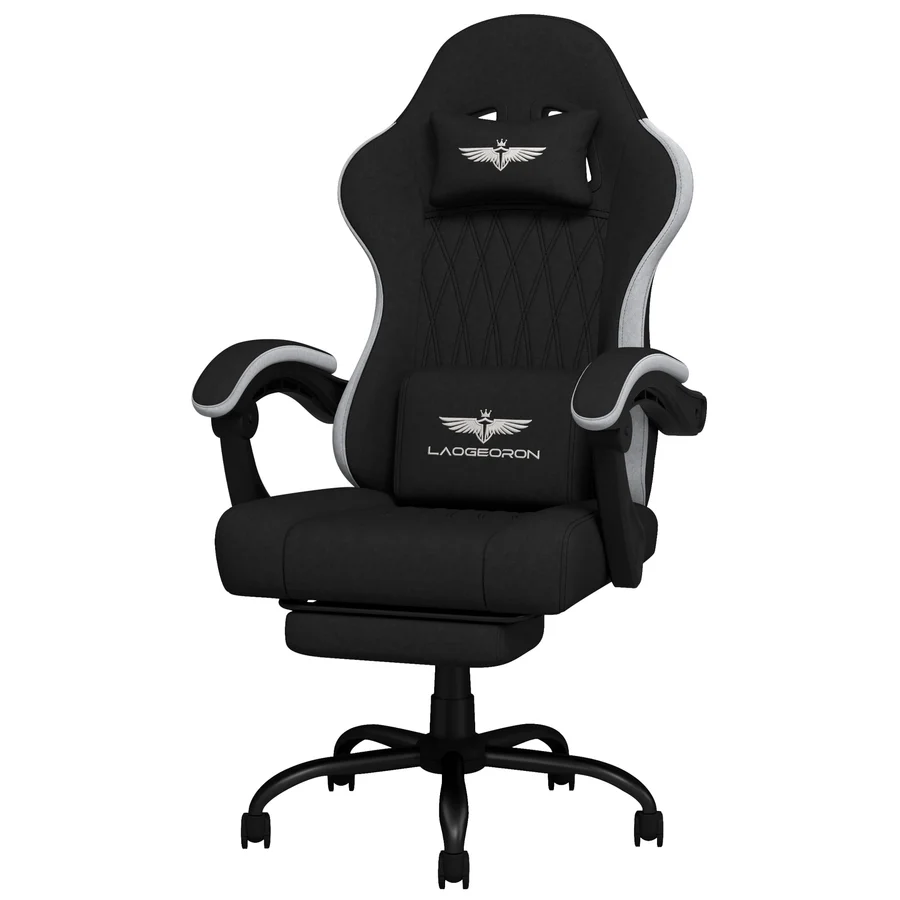
Adjust your existing seat and desk before deciding what furniture is missing. A gaming label does not establish that a chair fits your body or room.
Upgrade one limitation at a time, then use the setup long enough to judge the change. That leaves a clearer answer to what helped and a smaller pile of accessories that never earned their desk space.
Define the problem before shopping
Write down the games, platform and the limitation you want to solve. A blurry display, uncomfortable mouse and unstable internet connection call for different fixes. Check the game publisher’s current system requirements before assuming an accessory will improve performance. Measure desk space, seating distance and available ports. If the computer struggles to render the game, a new keyboard will not change its frame rate. A useful setup plan ranks the actual problems and assigns a budget to each. That keeps an attractive photograph of someone else’s desk from becoming the shopping list for yours.
Match the display to the source
Resolution and refresh rate describe different parts of the picture. The game, graphics hardware, cable, port and monitor must all support the desired mode. Microsoft’s refresh-rate instructions show how to inspect the active setting in Windows. Check it after connecting the display; the highest number on the box may not be the current mode. HDMI’s specification overview explains features such as variable refresh rate, but actual support depends on the devices and port. Compare the mode you can use, not merely the standard name printed in a listing.
Choose controls around the game
A mouse and keyboard, gamepad or specialist controller suit different genres and players. Check support for the exact game and platform. Shape, button reach and comfortable grip matter more than a very high sensitivity number when a device feels wrong in the hand. A keyboard layout should fit the language and desk; a controller may need an adapter or specific wireless connection. Test the controls with a familiar game if possible. Keep the packaging and receipt because comfort is difficult to judge from a product description. Accessibility needs should be part of the choice from the start.
Make chat audio understandable
For a headset, verify microphone support and the correct connector on the target platform. A pair of headphones may play sound but lack a working microphone for voice chat. Check whether sidetone, mute and volume controls are easy to find during a game. Comfortable weight and replaceable cushions can matter over long sessions. Test with a teammate or recording rather than relying on the packaging’s “clear voice” claim. If the room is shared, consider how much sound leaks and whether speakers are appropriate at all. Protect hearing with a reasonable volume and regular breaks.
Organize cables and power safely
Count outlets and power adapters before adding lights, docks and charging stands. Use manufacturer-approved supplies and avoid daisy-chaining power strips. Put cables where chairs cannot roll over them and feet cannot snag them. Leave ventilation clear around a computer or console. A desk accessory should improve the usable space, not hide a warm adapter under fabric. If you have limited outlets, prioritize the equipment that supports the game and ask a qualified electrician about permanent wiring needs. A clean-looking setup is not automatically a safe or practical one.
Check the whole cost of an upgrade
The monitor price may require a suitable cable, mount or stronger graphics hardware to deliver the intended benefit. A controller may need a battery pack or replacement parts; a headset may require a platform-specific adapter. Make a cost sheet with the complete setup and compare it with the budget. The FTC’s shopping guide recommends checking the seller, delivery and returns. Keep records because a compatibility issue may show up only after the game is running. A smaller, well-matched upgrade can outperform an expensive mismatch.
Change one thing at a time
After installing new gear, use a repeatable game scene or task to judge the result. Check that the active display mode, controls and audio match the plan. Note what improved and what did not. If a feature is missing, consult the manufacturer’s instructions before buying another accessory. Save firmware and driver updates from official sources and avoid random tuning tools. A setup becomes more useful through measured adjustments than through collecting devices. Keep enough room, power and attention for the games themselves rather than turning every session into maintenance.
This article draws on the linked primary sources and practical explanations. It does not report hands-on testing or a personalized assessment.